If you're having trouble connecting your BIAS MINI Guitar/Bass to BIAS AMP 2 software, use the troubleshooting guides below based on your connection type.
USB Connection — BIAS Amp 2 Desktop Does Not Detect BIAS MINI
BIAS MINI Guitar/Bass doesn't come with a separate USB driver and it follows the general USB protocol provided by Apple & Microsoft on your computer. Please follow the troubleshooting steps below to see if that helps:
1. Always leave your BIAS MINI Guitar/Bass powered off until BIAS Amp2 Desktop is installed and set up on your computer.
Lhttps://www.positivegrid.com/download
2. Try using a different USB Type B cable or connect it to a different USB port.
3. Remove all existing USB devices such as audio interface or MIDI keyboard from your computer.
4. Always use "High Performance Mode" on your computer.
For an in depth guide, please see these articles:
How to Setup High Performance Mode on Win10:
How to Setup High Performance Mode on Mac OSX:
5. Find the USB G1 device on Device Manager and remove it from your computer.
For PC:
Navigate to Device Manager->Click on Other Devices & Sound,Video and Game Controller categories. Uninstall the G1 device on and install it again.


For Mac:
Navigate to Audio MIDI Setup->Show MIDI Studio. Remove the G1 device and plug your BIAS MINI Guitar/Bass to computer via USB again. 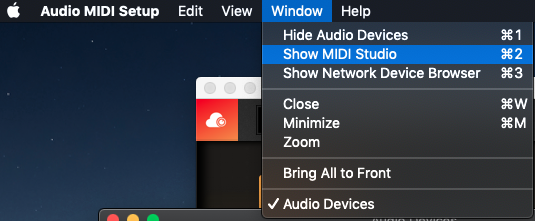

*If you still failed to connect BIAS MINI Guitar/Bass with your computer via USB, please send us a request to create an official bug report:
https://help.positivegrid.com/hc/en-us/requests/new
Bluetooth Connection — BIAS Amp 2 App Does Not Detect BIAS MINI
1. Always check you're running the latest BIAS Amp 2 App on your iPad/iPhone.
Check the information:
https://itunes.apple.com/app/bias-amp-2/id711314889?mt=8
2.Please refer to the troubleshooting guide below to make sure there's no wireless interference in your environment.
https://support.apple.com/en-us/HT201542
3.Download the latest BIAS Amp 2 Desktop and connect your MINI Guitar/Bass Amp to computer via USB. After, update the firmware to the latest version and try to connect your iPad/iPhone to MINI Guitar/Bass Amp again.
https://www.positivegrid.com/download
4. Connect your iPad/iPhone to a different Bluetooth device such as a Bluetooth speaker to ensure that the Bluetooth feature on your iPad/iPhone is still working.
5. Try to move your iPad/iPhone as close as to the MINI Guitar/Bass Amp first. After, download the "Light Blue Explorer" app on Apple App Store and let us know the signal strength.
Click to download the "Light Blue Explorer" app on App Store:
6.Please make sure USB is not connected to a computer while trying to connect to your iOS device via Bluetooth.
* If you still failed to connect your IPad/iPhone to the MINI Guitar/Bass Amp, please answer the following questions as much as possible and send us a request to create an official bug report: https://help.positivegrid.com/hc/en-us/requests/new
1. Your iPhone/IPad Model.
2. Serial# of your MINI Guitar/Bass Amp.
3. BIAS Amp2 App version and firmware version.
Preset Upload — Can't Upload Presets from BIAS Amp 2 App to MINI Amp
If you see the "Save to BIAS Gear" notification pop up when saving amp presets from BIAS Amp2 iPhone/iPad to your MINI Amp, please follow the steps below to check:
1. Check your Internet/WIFI connection. Please refer to this article:
https://www.zdnet.com/article/how-to-check-up-and-fix-your-internet-connection/
2. Follow the Bluetooth troubleshooting guide here:
https://support.apple.com/en-us/HT201542
3. Try downloading presets from ToneCloud to BIAS Amp2 App first, then upload it to the MINI Amp to avoid any unexpected interferences.
https://help.positivegrid.com/hc/en-us/requests/new